Loading Table of Contents...
Shopee Livestream on Phone: Instructions From A to Z
Quick Summary
Collapse
Shopee Live on mobile is not only a convenient feature but also a powerful weapon to help sellers increase sales, build personal brands and connect directly with customers.
In recent years, livestream selling has become a prominent trend in Vietnam’s e-commerce market. Sellers not only have the opportunity to showcase their products in an engaging way but also interact directly with customers, answer questions instantly, and create a shopping experience that feels more authentic than ordinary images or videos.
In this article, we will explore in detail how to run a Shopee livestream on your phone from A to Z. With step-by-step instructions, even new sellers can easily get started and make the most of this feature to boost their business.
I. What is Shopee Live? Benefits of Shopee Livestream
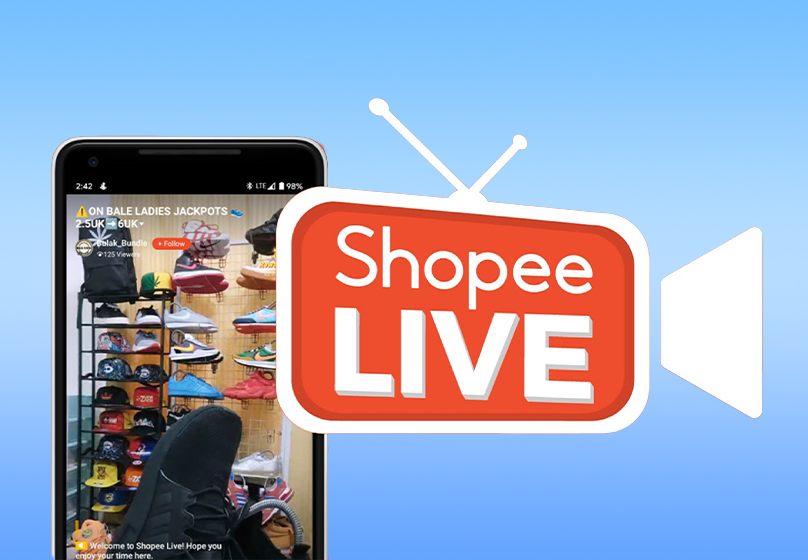
Shopee Live is a livestreaming feature built right into the Shopee app, allowing sellers to present products, provide consultations, and interact with customers in real time. More than just a marketing tool, Shopee Live acts as a “bridge” that helps sellers create a shopping experience that is closer, livelier, and more personal—just like having a direct conversation in a physical store.
Benefits for Sellers
- Increase product visibility and reach more potential customers.
- Build brand presence and trust through direct interaction.
- Drive faster “order closing” with vouchers and exclusive deals.
- Improve conversion rates as customers can watch live demos and get instant answers.
Benefits for Buyers
- View products in real life through live video.
- Access exclusive perks such as vouchers and free shipping.
- Engage, ask questions, and receive instant responses.
II. Conditions & Requirements Before Livestreaming
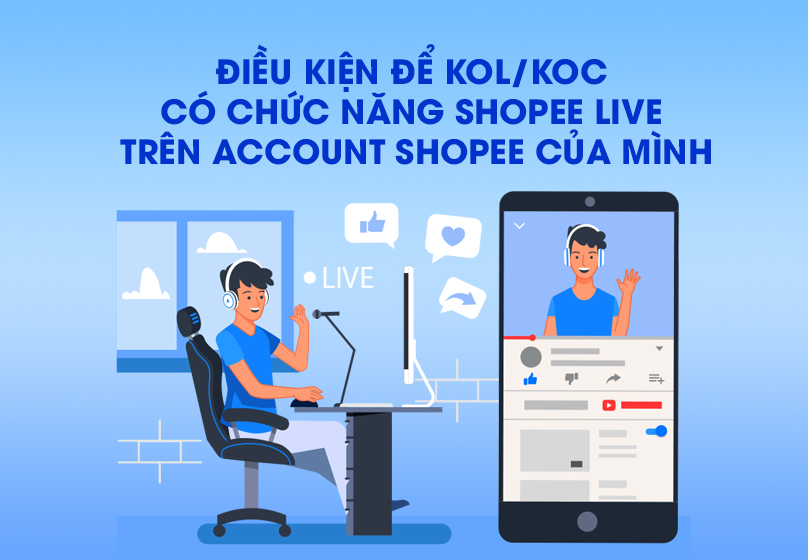
To start a Shopee livestream on mobile, sellers and KOLs/KOCs need to ensure they meet all eligibility criteria and prepare thoroughly in terms of equipment and content. This not only helps the livestream run smoothly but also increases the chances of attracting viewers and securing sales.
1. Requirements to Enable Shopee Live (for Sellers)
- Active shop on Shopee: The shop must be selling valid products, updated regularly, and compliant with Shopee’s general policies.
- Meet community standards: Sellers must not violate Shopee’s policies, especially regarding counterfeit goods, prohibited items, or misleading content.
- Minimum product count: Shopee usually requires a certain number of listed products to ensure diversity before granting access to Shopee Live.
2. Requirements for KOLs/KOCs
- Join Shopee Affiliate: This is Shopee’s affiliate marketing program, allowing KOLs/KOCs to earn commissions from generated sales.
- Monthly performance evaluation by Shopee: If they meet the standards, Shopee will enable Livestream features and allow product tagging via the “Liked” section.
- Email notification: Shopee will send results between the 1st–3rd of each month (if these dates fall on a weekend or holiday, the notice will be postponed to the next working day).
3. Prepare Equipment & Tools
- Smartphone: A device with a clear camera, strong battery, and stable video streaming capability.
- Internet connection: High-speed Wi-Fi or 4G/5G to avoid lag or interruptions.
- Supporting accessories: A tripod to stabilize the camera angle, lighting equipment to make products look clear, and a microphone for crisp audio.
4. Prepare Livestream Content
- Product list: Select key products or items currently on promotion to attract viewers.
- Vouchers & mini-games: Create enticing offers and fun activities (e.g., quick Q&A, share the livestream to win gifts) to keep viewers engaged.
- Communication script: Prepare greetings, product introductions, and topic transitions in advance to ensure the livestream runs smoothly and professionally.
Read more: How Long Does Shopee Take to Approve Products? Process, Timeline & Tips for Faster Approval
III. Step-by-Step Guide to Livestreaming on Mobile
To start a Shopee livestream on your phone, simply follow these steps. The process is designed to be simple and user-friendly, making it easy even for beginners to go live successfully.
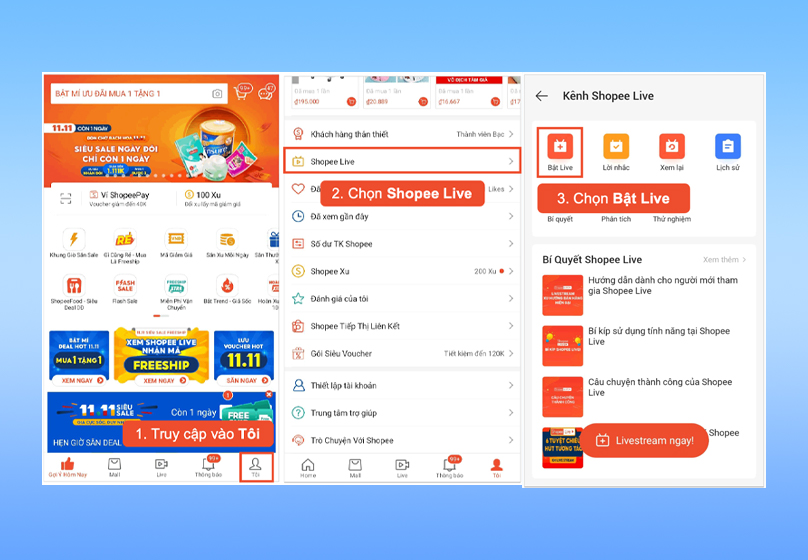
Step 1: Log in to your seller account on the Shopee App → go to Me.
Step 2: Select Shopee Live.
Step 3: Tap Start Live.
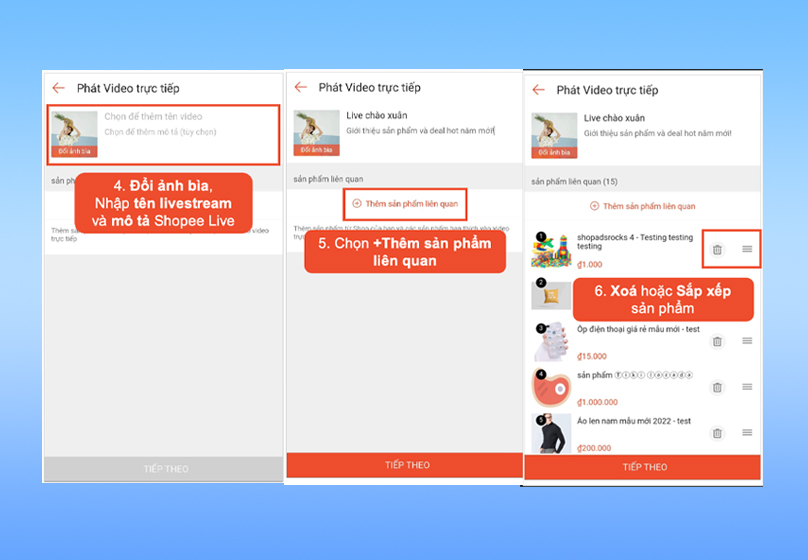
Step 4: Set up the livestream session
- Cover image: Choose a clear and simple picture; you can use your shop’s logo or profile photo.
- Livestream title (required): Write in uppercase, maximum 60 characters.
- Description: Provide a short introduction about the livestream content, featured products, or promotional program.
Step 5: Add related products by tapping + Add Product. You can choose from three categories:
- Liked (products you have previously liked)
- My Shop (products currently listed in your store)
- Recently (products used in your most recent livestream)
How to add products: Select individual items or tap Select All to add in bulk. Then, press Done.
Step 6: Remove unnecessary products or rearrange their priority order.
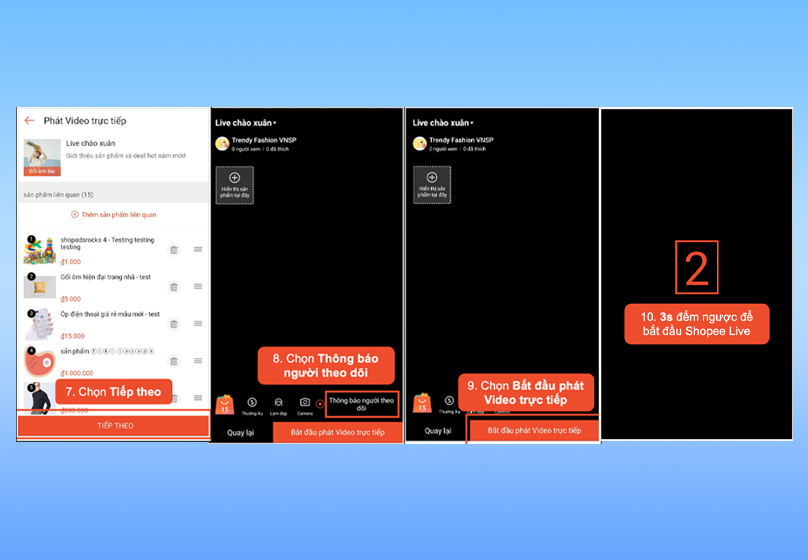
Step 7: Tap Next to enter the livestream preparation screen.
Step 8: Check the camera angle and phone position → select Send Notification to Followers (recommended within the first 3 minutes).
Step 9: When ready, tap Start Live.
Step 10: A 3-second countdown will appear before the livestream officially begins.
IV. Strategies & Tips for Effective Livestreaming and Maximizing Sales
To ensure your Shopee livestream on mobile not only attracts viewers but also drives high sales, sellers need a clear strategy. Below are key tips to help you optimize your live sessions:
1. Choose the Right Livestream Time
- Pick peak hours when Shopee users are most active: lunchtime (11 AM – 1 PM) and evening (8 PM – 10 PM).
- Maintain a consistent streaming schedule (e.g., 3 sessions per week) to build customer habits.
2. Create an Engaging Script
- Opening: Introduce yourself/the seller, set a fun atmosphere, and highlight special offers.
- During the livestream: Mix in mini-games, giveaways, and encourage comments to boost engagement.
- Closing: Launch hot deals and limited vouchers to drive quick purchases.
3. Continuously Interact with Viewers
- Ask proactive questions, e.g., “Do you prefer red or blue?”
- Respond quickly to comments to build closeness and trust.
- Call to action: “Tap the heart to get a voucher” or “Comment to join the mini-game.”

4. Offer Exclusive Livestream Deals
- Create vouchers valid only during the livestream, e.g., 20% off for the first 50 orders.
- Combine with free shipping programs to encourage instant purchases.
- Announce deals that are about to run out to create urgency.
5. Optimize Visuals & Audio
- Use proper lighting and avoid backlighting.
- Prepare a microphone or headset for clear, noise-free sound.
- Arrange a neat, professional background to leave a positive impression.
6. Continuously Monitor & Improve
- After each livestream, analyze the Shopee Live report: Did viewership increase compared to the previous session? What was the conversion rate? At what times was customer engagement highest?
- Use these insights to adjust scripts, duration, and product selection for future sessions.
V. Common Mistakes & How to Handle Them
Even with thorough preparation, sellers may still encounter issues during Shopee livestreams on mobile that can affect stream quality and customer experience. Below are common mistakes and solutions:
1. Weak Internet Connection, Lagging Stream
- Cause: Unstable internet connection leading to choppy visuals and audio interruptions.
- Solution: Check and ensure a strong Wi-Fi connection. If possible, use a wired connection (via router) or choose a location with stable 4G/5G signals. Close background apps on the phone to avoid bandwidth usage.
2. Dark or Blurry Visuals
- Cause: Poor lighting or an unclean phone camera lens.
- Solution: Use a livestream light (ring light) or take advantage of natural lighting. Clean the camera lens before going live. Set up a neat, well-lit background to create a professional look.
3. Distorted or Noisy Audio
- Cause: Low-quality microphone or livestreaming in a noisy environment.
- Solution: Use an external microphone or earphones with a built-in mic for clearer sound. Choose a quiet space, away from busy streets or crowded areas. Test the mic before starting the livestream.
4. Low Viewer Count
- Cause: No prior promotion of the livestream or choosing the wrong time slot.
- Solution: Announce your livestream schedule on Shopee Feed, Facebook Page, TikTok, or Zalo at least 1–2 days in advance. Stream during peak hours (lunchtime or evening) to attract more online customers. Create mini-games with vouchers/giveaways to encourage attendance.
5. Lack of Viewer Interaction
- Cause: Dull content with no incentives for engagement.
- Solution: Add mini-games such as “guess the product price” or “comment quickly to win a voucher.” Ask interactive questions like: “Drop a heart if you’re watching!” or “Which item would you like me to show first?” Offer exclusive vouchers to the most engaged viewers during the livestream.

VI. Conclusion
Shopee Live on mobile is not just a convenient feature but also a powerful tool that helps sellers boost sales, build personal branding, and connect directly with customers. With standout benefits such as increasing product visibility, building trust, driving quicker purchase decisions, and delivering an immersive shopping experience, livestreaming has become an unmissable trend on Shopee.
In today’s increasingly competitive market, Shopee Livestream is an essential tool for maintaining an edge, growing orders, and achieving sustainable success on the e-commerce platform.

Table of Contents