Loading Table of Contents...
What is Figma? A Beginner's Guide to Designing Websites with Figma
Quick Summary
Collapse
Discover what Figma is, its standout features, and how beginners can create professional websites. Learn practical tips, useful plugins, and detailed guides
Figma is an online UI/UX design tool that is highly appreciated for its ease of use and effective work support. So what is Figma, why is this tool trusted by many Designers and how to design a professional website with Figma even if you are a newbie. Let's find out with Connect Tech through this article!
I. What is Figma?
Figma is a user interface (UI) and user experience (UX) design tool that operates entirely on a web-based platform. Unlike traditional software that requires installation, Figma allows you to work directly in your browser while automatically saving your projects to the cloud. This makes designing websites with Figma flexible, time-saving, and highly efficient.
With its cloud-based system, users can design Figma websites anytime and anywhere without worrying about devices or operating systems. All you need is a Figma account and a stable internet connection.

Some common applications of Figma include:
- Designing user interfaces and optimizing user experiences for websites and mobile apps.
- Creating wireframes and prototypes to simulate user journeys.
- Designing social media posts, banners, and landing pages.
- Collaborating in teams and receiving direct feedback on the design file
II. Outstanding advantages of Figma
Figma offers many outstanding features to help improve work efficiency, especially in the field of Figma website design. Below are the advantages that make Figma the top choice for both beginners and design experts:
1. Friendly and easy to use interface for beginners
One of the big plus points of Figma is its friendly and easy-to-use interface. Even if you are new to Figma website design, you can quickly get acquainted and operate it without having to go through many complicated installation or configuration steps. There is also a free version with all the basic features so you can start your Figma website design journey.
2. Figma supports simultaneous work
Figma allows multiple people to work on a design file without sending drafts back and forth. You can see each member's avatar, leave comments directly on the interface, track revision history, and get instant feedback. This feature is especially useful in the Figma website design process, when close coordination between designers, developers, and marketers is needed to ensure project progress and quality.

3. Automatically save on cloud
All projects in Figma are automatically stored on the cloud platform, so you no longer have to worry about forgetting to save or losing data when your computer crashes. In addition, you can also easily share the link to your Figma website design project for others to view or edit without having to send an attachment.
4. Works smoothly on Windows, macOS and other operating systems
Figma works entirely in the browser, so you can use it on Windows, macOS, Linux, or even low-end computers without installing any software. With just an account and an internet connection, you can work on your Figma website design project anywhere, anytime.
5. Diverse plugin repository helps increase design efficiency
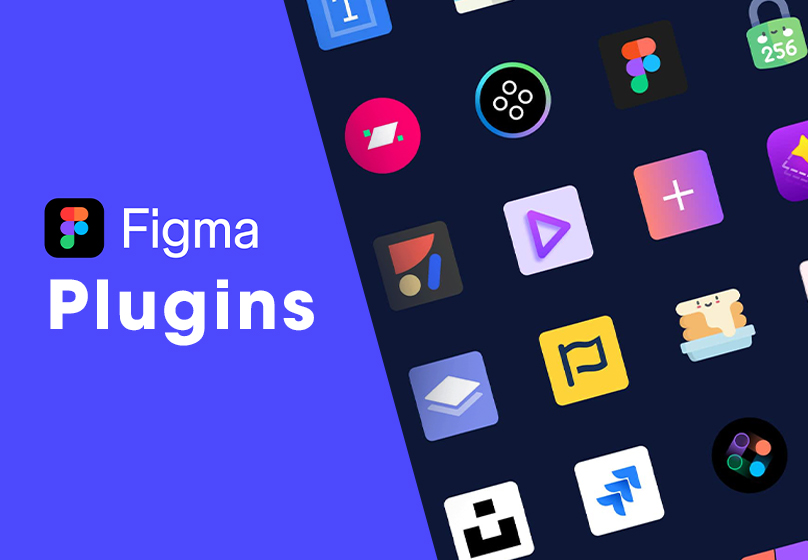
Figma offers a huge plugin repository with hundreds of utilities such as: icon library, ready-made templates, dummy text creation, image fill, grid alignment, and more. These tools help you shorten your working time and support the Figma website design process effectively and with quality.
III. Instructions for registering and designing a Figma website
Figma does not require high configuration or complicated installation. You can start a Figma website design project right away in your browser or download the application to your device depending on your needs. The unified interface helps you switch flexibly without having to spend time getting used to it again. If you are a beginner who wants to start designing a Figma website, the following tutorial will help you perform the first steps in just a few minutes:
1. Go to the Figma website and create an account
To start designing a website in Figma, go to Figma’s homepage. Click the “Try Figma for free” button to create a free account.
There are two ways to register an account:
- Sign in with a Google account: quick and convenient.
- Sign up with email: simply enter your name, email address, and password, then click “Create Account” to continue.

2. Verify your account and complete registration
After signing up, you will be asked to complete an image verification (CAPTCHA). This step confirms that you are not a robot.
Next, fill in some basic information, such as:
- Full name
- Your current field of work (design, programming, marketing, etc.)
- Work type (individual or team)
Then, check the email you used to register and click the verification link that Figma sent you. In some cases, you may need to complete another image verification.

3. Choose the appropriate package
After successful verification, Figma will provide the following options:
- Starter (Free): Designed for individuals or small teams, offering basic features to learn and start designing.
- Professional (Paid): For professional teams, with expanded management and collaboration features.
- Organization (Paid): For large organizations, focusing on enterprise-level management, security, and integrations.
If you only want to design websites in Figma for learning or experimentation, the Starter plan is the most suitable choice.

4. Use Figma on the web or download the software
Figma is completely cloud-based, meaning you can use it directly in a browser like Google Chrome, Firefox, or Safari. However, if you want to use the desktop version, you can still download it.
Whether you use the web version or the software, the interface and features are the same, giving you more flexibility in the process of designing a Figma website.
5. Get familiar with the working interface in Figma
Once logged in, you will be taken to the main dashboard, where you can manage all your Figma website design projects. Here, you can:
- Click “New design file” to create a new design file
- Manage old projects in the Recents section
- Join a group or create a workgroup if you need to collaborate

When opening a new project, you will see the design interface consisting of the following areas:
- Canvas: Where you manipulate, drag and drop, design the layout.
- Toolbar: Includes basic tools such as Frame, Shape, Text, Selection...
- Left sidebar: Manage layers, components, assets...
- Right property bar: Adjust color, size, alignment, constraints, etc.
IV. Quick tips on Figma
To design a website effectively, mastering shortcuts and quick tips will help you save a lot of time. Here are some small but extremely useful tips that beginners should know:
1. Some quick tips on Figma
- Measure distance between objects: Hold down Alt (Windows) or Option (macOS) and hover over another object to see the exact distance.
- Quickly select multiple objects with the same properties: Helps you edit in bulk without selecting each layer one by one.
- Quickly paste images into shapes: Just copy the image from the clipboard and paste it directly into the selected shape.
- Use Figma Mirror: Install the Figma Mirror app to preview the Figma website design interface on mobile devices, very useful in the responsive design process.
- Increase design consistency: Adjust the nudge value to control the distance when using the navigation keys.

2. Tips to work faster with plugins
Figma has a rich plugin repository that helps save time and optimize the Figma website design process. Here are some useful plugins that beginners should try:
- Unsplash / Pexels / Icons8: Find and insert high-quality photos, free icons directly into the design without leaving Figma.
- Content Reel: Quickly create sample content (name, email, phone number, address ...) to help you simulate real-life layouts without having to manually enter.
- Autoflow: Draw flow diagrams and connect between frames (sitemap, wireframe) with just one click.
- Lorem ipsum: Create dummy text to fill in the content frame, extremely convenient when you don't have real content yet.
- Charts: Easily add charts (column, circle, line ...) to the design if you are designing dashboards, reports or admin panels.

How to install plugin: On the main menu bar, select "Resources (Shift + I)" → switch to the Plugin tab → type the plugin name → select Install. After installation is complete, just right-click on the canvas and select the plugin you want to use.
V. Conclusion
Figma is an extremely suitable application for those who want to start designing Figma websites easily, quickly and effectively. Thanks to the ability to work online, support teamwork and a friendly interface, Figma will help you create professional UI/UX designs without requiring a strong computer configuration or complicated installation.
If you are in need of a website design unit that is SEO-standard and optimizes conversion, let Connect Tech support you from idea to actual implementation. Contact us now for free design consultation!
See more related articles: Professional, SEO-Friendly, and Affordable Interior Design Website Development

Table of Contents