Loading Table of Contents...
Instructions on How to Cancel Amazon Orders Quickly & Easily
Quick Summary
Collapse
Canceling Amazon orders is easy if you know the conditions and steps: via website, app, AmazonFresh, Digital, or seller orders, helping manage shopping
Accidentally ordered the wrong product, changed your shopping needs or simply want to avoid unnecessary spending? Don't worry, canceling an order on Amazon is completely simple if you understand the conditions and operations. In this article, we will guide you in detail on the fastest and most accurate ways to cancel Amazon orders, helping you proactively control all shopping orders.
I. Conditions for canceling Amazon orders
Not all orders on Amazon can be canceled immediately. To do it successfully, you need to understand the following conditions:
- Time allowed to cancel: Only applies when the order is in the "Pending" or "Processing" status.
- Pre-orders or custom products: Can be canceled before the order is processed, after which there will be no cancellation option.
- Orders managed by Amazon (FBA): Usually easier to cancel because the system is directly controlled by Amazon.
- Third-party orders (Marketplace Seller): Cancellation depends on the seller's policy, you need to contact them directly for confirmation.
- Time limit: Normally, Amazon only allows cancellation within a few minutes to 24 hours after placing an order, depending on the speed of processing the order.
- If you cannot cancel: You can still exchange or return the item within 30 days according to Amazon's return policy.
II. How to cancel an Amazon order via website/app
Amazon allows users to cancel orders directly on both the web and mobile versions. You just need to follow these steps:
1. On the Website
Step 1: Go to amazon.co.uk and log in to your Amazon account.
Step 2: Select Returns & Orders on the menu bar.
Step 3: Find the product you want to cancel and click Track Package.
Step 4: On the next page, select Cancel items in the Order Information section.
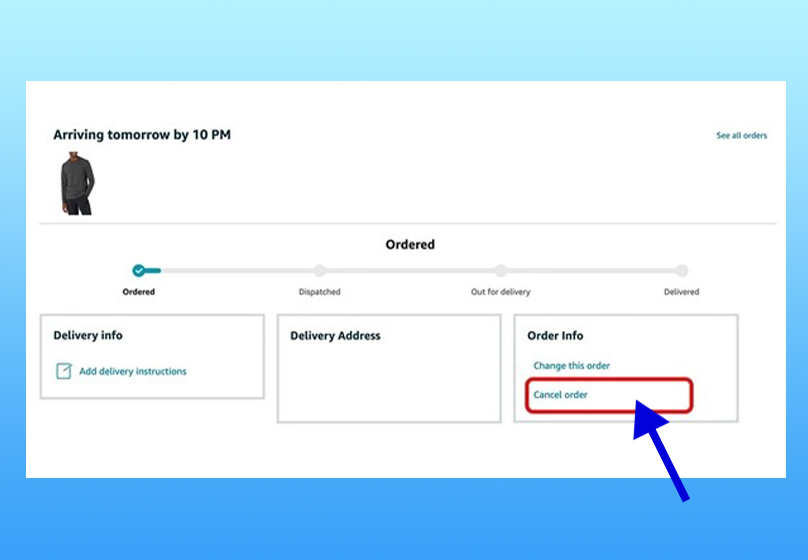
Step 5: Confirm the cancellation by clicking Cancel selected items in this order.
2. On Mobile App (iOS/Android)
Step 1: Open the Amazon Shopping app → tap on the Profile icon.
Step 2: Select Your Orders.
Step 3: Find the order you want to cancel → tap Cancel Order.
Step 4: Mark the product you want to cancel → tap Cancel selected items to confirm.
Step 5: Wait for the confirmation email from Amazon to know that the order has been successfully canceled.
Read more: Steps to Buy on Amazon from A to Z: Simple, Fast, Effective
III. How to cancel AmazonFresh and Digital orders
Not all types of orders on Amazon can be canceled in the usual way. For AmazonFresh and Digital products, you need to note the following points:
1. AmazonFresh (grocery/express delivery)
- AmazonFresh orders are usually processed immediately after placing the order.
- Therefore, you can only cancel within the first few minutes of placing the order.
- If the processing time has passed, the order cannot be canceled. At this point, you can refuse to receive the order when it arrives or use the Returns Center to return it after receiving it.
2. Digital orders (music, videos, eBooks, apps, etc.)
- Most digital products on Amazon cannot be canceled after successful payment.
- Users can go to the Digital Orders section in their account to check the order status.
- In some special cases (e.g. wrong purchase, system error), you can contact Amazon Support directly for support with refund or cancellation. However, this depends on the policy of each type of content.
IV. Canceling orders from third-party sellers
For orders from third-party sellers, the cancellation process will be different and depends largely on each seller's own policy:
1. How to do it
Access the Your Orders section.
Select the order you want to cancel → click Contact Seller or Get Help with Order.
Send a cancellation request via chat or email, stating a brief reason (e.g. wrong order, change of needs...).
2. Important notes
- Cancellation and refund policies will depend on each seller. Therefore, you should check the Seller Profile section first to understand the conditions.
- Some sellers only allow cancellation within the first 24 hours after placing an order.
- When contacting us, keep your tone polite and clear, as this will help you get support faster.
- If the seller has already started processing or shipping the item, you may need to wait for it to be received and then proceed with the return according to Amazon's policy.
V. If the order has been shipped
In many cases, when the order has left the warehouse or is on the way to delivery, the Cancel Order button will no longer be displayed. However, you still have some options to handle:
1. Request a cancellation of the delivery
Go to Your Orders → select the order → click Request Cancellation.
Note: Depending on the shipping status, Amazon does not guarantee 100% success with this request.
2. If the order has been delivered
You can:
Refuse to receive the item as soon as the shipper arrives.
Or proceed with the return within 30 days through the Online Return Center.
3. Detailed Return Process
Go to Your Orders → select Return or Replace Items.
Select the reason for return from the available list (e.g. ordered wrongly, no longer needed…).
Print the Return Label provided by Amazon.
Pack the product and send it back according to the instructions.
Once Amazon or the seller receives the returned item, you will be refunded within 3–5 business days (depending on the payment method).
VI. Important notes when canceling Amazon orders
Although canceling orders on Amazon is quite simple, to avoid trouble and ensure the process goes smoothly, you need to remember some important points below:
- Cancel as soon as possible: Time determines the possibility of successful cancellation. Ideally, you should do it within 30 minutes - 24 hours after placing the order.
- FBA (Fulfilled by Amazon) orders: Amazon manages and processes directly, so they are often easy to cancel and confirmed quickly.
- Seller orders: The cancellation process depends on each seller's own policy, usually taking 24-48 hours to respond.
- Cannot restore canceled orders: If you want to buy the product again, you need to place a new order from the beginning.
- Cancel orders too often: If you are a seller, canceling orders frequently or without a reasonable reason can negatively affect your reputation and sales account performance.
- Tracking email notifications: After submitting a cancellation request, Amazon always sends a confirmation email. Check your inbox (and spam) to know the status of your order.
- Digital & AmazonFresh orders: Cancellation restrictions, so check carefully before placing to avoid trouble.
VII. Summary
Cancelling an Amazon order is not complicated if you understand the conditions and do it correctly. Whether it is through the website, the app, with AmazonFresh, Digital orders or from third-party sellers, you have the right solution to handle it. The most important thing is to act as soon as possible to increase the cancellation success rate and avoid inconvenience.
If you shop on Amazon regularly, save this guide for use when needed. Wish you manage your orders effectively and have a smoother shopping experience on Amazon!
Read more: Is shopping on Amazon trustworthy? Everything you need to know

Table of Contents