Loading Table of Contents...
60 Website Design Terms Explained Simply for Beginners
Learn 60 website terms, from domains, hosting, UI/UX, frontend, and backend to SEO, security, and technology, with simple explanations for beginners.
Website design terminology covers site structure, interfaces, UI/UX, technology, security, operations, and SEO. Understanding these terms helps beginners communicate with designers, developers, and agencies and see exactly what they are paying for when building a website.
Connect Tech has grouped 60 website design terms, from basic to more specialized concepts, with summary tables and brief explanations.
Basic Website Design Terms
|
|
|
|
|
|
|
|
|
|
|
|
|
|
|
|
|
|
|
|
|
|
|
|
|
|
|
|
|
|
|
|
|
|
|
|
1. Website
A website is a collection of linked pages and resources accessible over the internet. It can contain text, images, videos, forms, products, transaction features, and other interactive elements.
For example, a company website might include home, about, services, projects, blog, and contact pages. An e-commerce website may also have product categories, a shopping cart, checkout, and order management.
2. 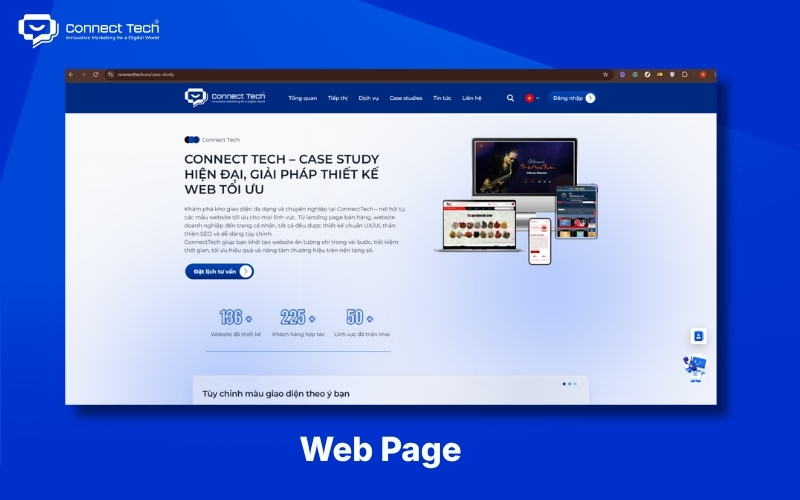
A web page is an individual page within a website and generally has its own URL. About pages, service pages, product pages, and blog posts are all web pages. A website may contain hundreds or thousands of pages, depending on the amount of content. Each page should have a clear purpose so users and search engines can understand its value.
3. Homepage
The homepage introduces the website and guides users to important content. It commonly features a logo, navigation menu, hero section, highlights, services, products, projects, and calls to action (CTAs).
It does not need to contain every detail about the business. Instead, it should be a starting point that helps users quickly find relevant information.
4. URL
A URL is an address that identifies the location of a page or resource on the internet. It can include a protocol, domain, path, and parameters.
For example, https://example.com/services contains the domain example.com and the path /services.
Clear URLs help users understand page topics and make a website's navigation structure easier to manage.
5. Domain
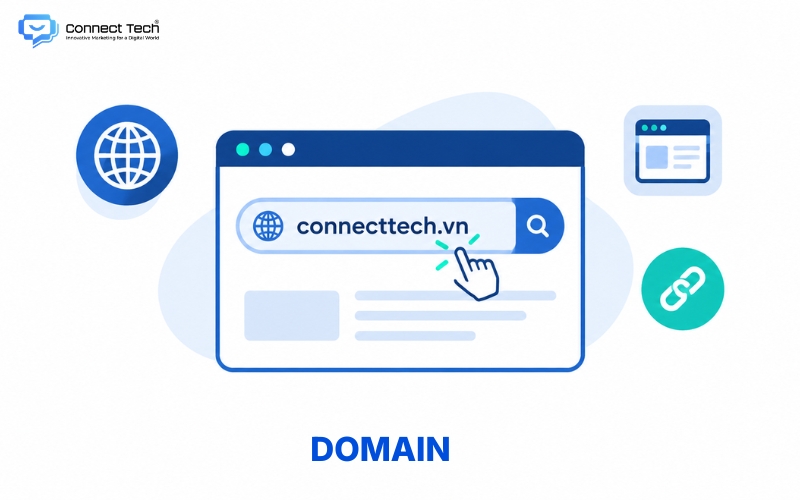
A domain is the name users enter into a browser to reach a website. It often acts as the brand's recognizable address online.
For example, connecttech.vn is a domain. Businesses should choose a short, memorable domain that fits their brand.
6. Hosting
Hosting provides the server space and resources needed to store a website. It holds code files, images, databases, and other resources that keep the site running. Hosting quality can affect speed, capacity, and reliability. A high-traffic website usually needs more suitable infrastructure than a basic hosting plan.
7. Server
A server provides resources and processes requests sent to a website or application. When someone opens a page, the server receives the request, processes data, and sends content to the browser. It may be a physical machine or a virtual server resource. Server capacity should match the site's traffic and technical requirements.
8. DNS
DNS translates domain names into IP addresses that computers use to connect to servers. It lets people use memorable names instead of remembering IP addresses. When a business points its domain to a hosting service, DNS connects the name to the location where the website is stored.
Website Interface Elements
|
|
|
|
|
|
|
|
|
|
|
|
|
|
|
|
|
|
|
|
|
|
|
|
|
|
|
|
|
|
|
|
|
|
|
|
|
|
|
|
|
|
|
|
|
|
|
|
9. Header
The header sits at the top of a website and usually contains important navigation elements, such as the logo, menu, contact button, search feature, or user account link. A well-designed header helps users recognize the brand and reach key site areas quickly.
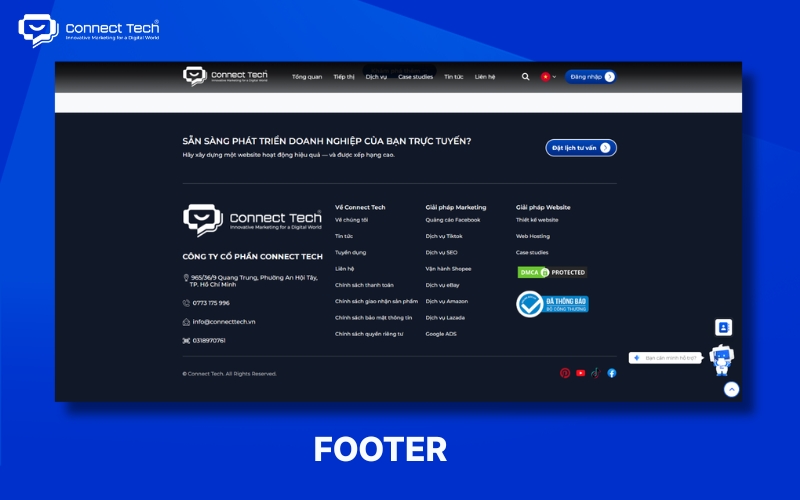
10. Footer
The footer sits at the bottom of a page and usually holds information users may need after reading the content. It can include contact details, an address, policies, service links, social media links, and copyright information. It can also help navigation and strengthen the site's internal linking structure.
11. Navigation Menu
A navigation menu is a set of links that helps users move between website sections. Depending on the site's structure, it may be horizontal, vertical, a hamburger menu, or a mega menu. Sites with many categories should group links logically so users can find information easily.
12. Hero Section
The hero section is a prominent area, usually near the top of a page, that conveys its most important message. It often combines a heading, description, image or video, and CTA. A business site may use it to present its core value, main service, or a particular campaign.
13. Sidebar
A sidebar sits beside the main content and usually contains supporting information or features. A blog might use one for categories, related posts, search, or a CTA. The sidebar should support the main content without distracting users with too many elements.
14. Breadcrumb
A breadcrumb is a trail of links showing where a user is in a website's hierarchy. A product page might show Home > Category > Product. Breadcrumbs let users return to a higher-level page and help search engines understand page relationships.
15. Landing Page
A landing page is designed around a specific conversion goal. It might prompt visitors to register, submit a form, download a document, book an appointment, or buy a product. Landing pages often reduce unnecessary navigation to keep attention on the main action.
16. CTA
A CTA asks users to take a specific action. Common examples include “Sign up now,” “Get a quote,” “Contact us,” “Buy now,” and “View products.” An effective CTA makes it clear what will happen when a user clicks.
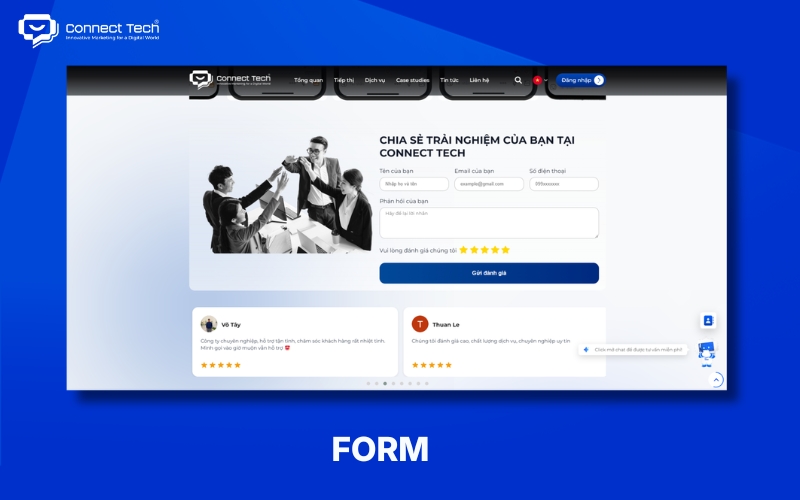
17. Form
A form lets users enter and submit information to a website or its underlying system. A contact form might request a name, email address, phone number, and inquiry. It should request only the information appropriate to its purpose to reduce friction.
18. Popup / Modal
A popup or modal is an overlay that appears above the current content to draw attention. A website might use one for an offer, sign-up form, notice, or confirmation request. It should appear at the right moment and avoid interrupting users as they read.
19. Favicon
A favicon is a small icon representing a website, usually visible in a browser tab. It helps users identify a site when they have several tabs open. Businesses often use a simplified logo or brand symbol as their favicon.
UI/UX Terms in Website Design
|
|
|
|
|
|
|
|
|
|
|
|
|
|
|
|
|
|
|
|
|
|
|
|
|
|
|
|
|
|
|
|
|
|
|
|
|
|
|
|
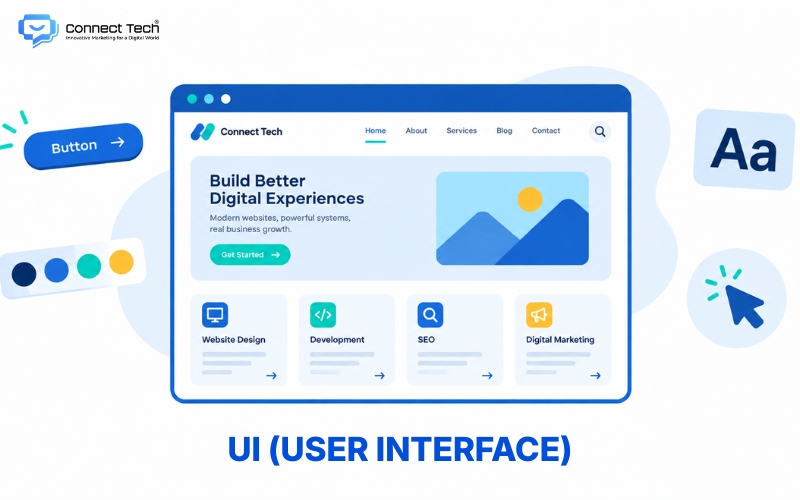
20. UI
UI (user interface) is what users see and interact with directly on a website. It includes colors, typography, buttons, icons, images, spacing, layouts, and other visual elements. Good UI is clear, consistent, and aligned with the brand. Figma is a popular tool designers use to create UIs and prototypes.
21. UX
UX (user experience) is the overall experience of using a website. It includes finding information, understanding content, taking actions, and completing goals.
UI focuses largely on the interface, while UX considers the user's entire journey. A beautiful site may still provide poor UX if users struggle to find information or complete tasks.
22. Usability
Usability describes how easy a product or website is to use. Good usability helps people understand how to use a site and finish tasks without excessive effort or guesswork. It often involves navigation, content, forms, CTAs, and the arrangement of elements.
23. User Flow
A user flow is the sequence of steps someone takes to achieve a goal on a website. An online store might have a flow of Home → Category → Product → Cart → Checkout.
Designers use flows to spot unnecessary steps and remove obstacles in the conversion journey.
24. Information Architecture
Information architecture describes how a website organizes, ranks, and connects information. Clear information architecture helps users see what the site contains and find the right information faster. Menus, categories, URLs, breadcrumbs, and internal links can all reflect it.
25. Wireframe
A wireframe is a sketch of a page's structure before detailed visual design. It focuses on the positions of the header, content, images, CTAs, forms, and other sections. It lets a team agree on a layout before spending time on colors and imagery.
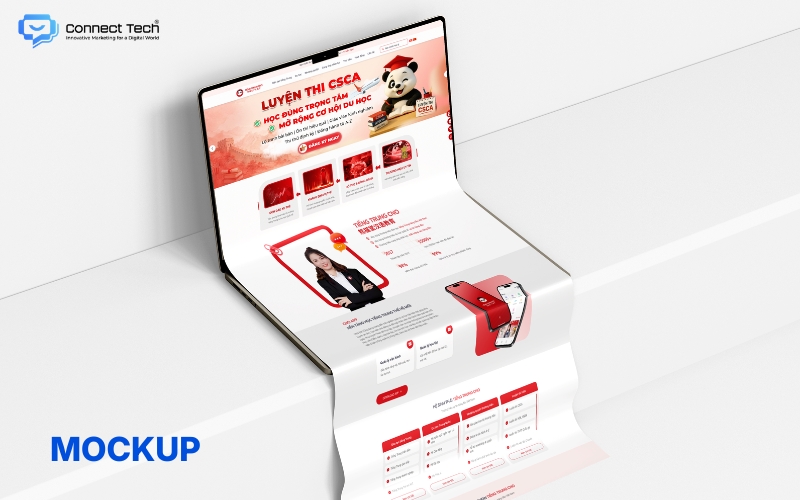
26. Mockup
A mockup is a static design showing a website's intended appearance. It usually includes colors, typography, images, buttons, and other UI elements. It helps clients visualize a site before developers build the actual interface.
27. Prototype
A prototype is a model that lets users interact with a design before the website is fully developed. It can simulate clicks, page changes, menu opening, or an entire user flow. Prototypes help teams detect UX problems early and reduce changes during development.
28. Design System
A design system is a set of standards and components that keeps a website's interface consistent. It may specify colors, typography, buttons, forms, grids, spacing, and components. Large websites with many pages and designers benefit especially from a design system.
Layout and Visual Design Terms
|
|
|
|
|
|
|
|
|
|
|
|
|
|
|
|
|
|
|
|
|
|
|
|
|
|
|
|
|
|
|
|
|
|
|
|
|
|
|
|
|
|
|
|
|
|
|
|
|
|
|
|
29. Layout
Layout is the way a website arranges elements on a page. It determines where the header, content, images, sidebar, CTAs, and footer appear. A well-planned layout creates a clear reading path and helps users spot important information quickly.
30. Grid
A grid helps designers align elements within a consistent structure. It often divides a page into columns and gaps to create a balanced layout. Grids are especially useful on websites with many categories, cards, products, or other content presented in a consistent way.
31. Alignment
Alignment describes how interface elements line up with one another. Designers may align elements left, right, center, or to a grid. Good alignment makes the interface orderly and its content easier to follow.
32. Whitespace
Whitespace is the empty space between interface elements; it does not have to be white. It separates content groups, offers visual pauses, and improves readability. Too little space can make a page feel crowded, while appropriate spacing helps content stand out.
33. Typography
Typography is the selection and presentation of text on a website. It covers fonts, font sizes, weights, line height, letter spacing, and heading hierarchy. Appropriate typography makes content easier to read and expresses the brand's personality.
34. Visual Hierarchy
Visual hierarchy is how an interface guides attention among its elements. Size, color, position, contrast, and whitespace all affect it. Effective visual hierarchy shows users which heading, information, or CTA to notice first.
35. Color Scheme
A color scheme is a set of colors used consistently across a website. It commonly includes brand, background, text, CTA, and status colors. Business websites should choose colors that match their brand identity and keep text readable.
36. Contrast
Contrast is the degree of difference between visual elements, such as text and its background. Appropriate contrast helps users distinguish content and read text. It is especially important for accessibility because low contrast can make a site difficult for people with limited vision to use.
37. Above the Fold
“Above the fold” refers to the content visible when a page first loads, before scrolling. This area often contains the logo, main heading, value proposition, and CTA. It does not need to fit every important detail. It should provide enough context for users to understand what they are viewing and what they can do next.
38. Responsive Design
Responsive design allows an interface to adapt to different screen sizes. A responsive site can change the size and arrangement of elements, images, and navigation when viewed on a desktop, tablet, or phone. It helps businesses provide a consistent experience across devices.
39. Mobile-first
Mobile-first is an approach that starts with smaller screens and then expands the design for larger ones. It encourages teams to prioritize the most important content and features from the outset. It suits websites with substantial mobile traffic or a strong need for an effective small-screen experience.
40. Breakpoint
A breakpoint is a point at which CSS changes an interface based on viewport size. At a breakpoint, a website might change from a horizontal to a hamburger menu, or from three columns to one. Breakpoints let responsive layouts adapt to different screen sizes.
Website Technology Terms
|
|
|
|
|
|
|
|
|
|
|
|
|
|
|
|
|
|
|
|
|
|
|
|
|
|
|
|
|
|
|
|
|
|
|
|
|
|
|
|
|
|
|
|
41. Frontend
The frontend is the part of a website users see and interact with. It uses HTML, CSS, JavaScript, and often frameworks or libraries to build the interface and page behavior. Menus, buttons, sliders, forms, and transition effects can all be part of the frontend.
42. Backend
The backend handles server-side processes that users generally do not see. It manages logic, databases, authentication, APIs, and business operations. An online store might use its backend to manage products, orders, accounts, and payments.
43. HTML
HTML is the markup language used to structure a web page's content. It defines elements such as headings, paragraphs, links, images, forms, and buttons. HTML provides the structure, while CSS handles presentation and JavaScript provides many interactive behaviors.
44. CSS
CSS defines how HTML appears in a browser. It controls colors, fonts, spacing, sizes, grids, responsive layouts, and many other visual properties. It lets developers turn an HTML structure into an interface that matches the UI design.
45. JavaScript
JavaScript is a programming language that powers interactions and dynamic behavior on websites. It can open menus, validate forms, update content without reloading the entire page, or create more complex interactions. Libraries and frameworks such as React can support the development of modern web app interfaces.
46. CMS
A CMS (content management system) lets users manage and update website content without editing source code for every change. WordPress is a common example. A CMS suits businesses that regularly update articles, products, images, or marketing content.
47. Database
A database stores structured information that a website can retrieve and update. It may contain accounts, products, orders, articles, contact details, and other data. Websites with complex operations often need a well-designed database to scale and run reliably.
48. API
An API lets software or systems exchange data. A website can use APIs to connect payment gateways, CRMs, shipping services, maps, social platforms, or internal software. APIs help businesses connect their websites to a broader technology ecosystem.
49. Framework
A framework provides tools and a structure for building applications in a consistent way. Laravel is a PHP framework, while Next.js is based on React. Frameworks can help development teams organize code and build common features more efficiently.
50. Source Code
Source code is the code that makes up a website's structure, interface, and features. Developers use it to build, fix, upgrade, and maintain the site. Businesses should clarify ownership, access rights, and source code handover terms when signing a website development contract.
Common SEO Terms in Website Design
|
|
|
|
|
|
|
|
|
|
|
|
|
|
|
|
|
|
|
|
|
|
|
|
|
|
|
|
|
|
|
|
|
|
|
|
|
|
|
|
|
|
|
|
51. SEO-friendly Website
An SEO-friendly website has a structure and technical foundation that make it easier for search engines to access, understand, and process content. It typically considers HTML structure, speed, mobile usability, URLs, internal links, sitemaps, and crawlability.
Being SEO-friendly does not guarantee high rankings. Rankings also depend on content quality, search intent, competition, authority, and other factors.
52. Meta Title
A meta title is the HTML title element that supplies a page title to browsers and search engines. It often communicates the page's main topic in search results. A title should clearly describe the subject, match search intent, and avoid misleading wording.
53. Meta Description
A meta description is a short summary of a page's content. A search engine may use it in a search snippet or replace it with another passage better suited to the query. It should accurately describe the page and give users a good reason to open it.
54. Alt Text
Alt text describes the content or function of an image in HTML. Screen readers can announce it to help people who cannot see the image, while search engines may use it to understand the image. Alt text should be accurate and avoid unrelated keyword stuffing.
55. Sitemap
A sitemap is a file listing URLs that a website wants search engines to know about. An XML sitemap commonly includes important URLs and can help search engines discover content. It is particularly useful for large, new, or structurally complex websites.
56. Robots.txt
Robots.txt is a file containing rules that guide crawlers on which areas they may access. Websites place it at the root of the domain. It is not a security tool and should not be used to protect sensitive data from visitors.
57. Canonical
A canonical signal tells search engines which URL is preferred among pages with similar or duplicate content. Websites can use rel="canonical" to indicate that URL. It helps manage URL variants and reduces confusion about the main version.
58. Structured Data
Structured data is information marked up in a standardized format to help search engines understand a page. A site may use Schema.org vocabulary in JSON-LD to describe entities such as an Organization, Product, Article, Event, or Breadcrumb. Structured data does not guarantee rich results, but it can help clarify a page's meaning.
59. Crawl
Crawling is the process of a search engine bot visiting URLs and gathering information. Googlebot is one crawler Google uses to discover web content. Good internal linking, an appropriate sitemap, and reliable access can help crawlers explore a website.
60. Index
Indexing is the process by which a search engine stores and organizes information about content discovered by crawlers. A crawled page is not necessarily indexed. Useful content, clear structure, and appropriate accessibility help search engines process a page effectively.
These 60 website terms give beginners a foundation in site structure, UI/UX, visual design, technology, security, and SEO. Businesses do not need to become developers to understand them, but using the terms correctly can make planning, quoting, design, development, and acceptance of a website project more transparent.
If your business is looking for professional website design services, Connect Tech can advise on site structure, UI/UX, technology, SEO, and integrations based on the project's actual goals
Table of Contents
Related news
60 Website Design Terms Explained Simply for Beginners
Learn 60 website terms, from domains, hosting, UI/UX, frontend, and backend to SEO, security, and technology, with simple explanations for beginners.
Top 9 Easy-to-Use Website Builders That Require No Coding
Explore popular website builders, including WordPress, Wix, Webflow, Framer, and Shopify. Compare features and choose the right tool for your needs.
Top 9 Reputable Website Design Companies in Ho Chi Minh City
Compare nine reputable website design companies in Ho Chi Minh City by their strengths, services, technologies, and suitability to find the right web design partner.
Professional SEO-Optimized E-commerce Website Design
Professional SEO-optimized e-commerce website design with an optimized user experience, payment, order management, and operations. Full-service e-commerce website design tailored to your needs.
Custom SEO-Optimized WordPress Website Design Solutions
WordPress website design guide. Providing professional web design services to help businesses optimize UX and boost conversion rates. Get a quote now!

Complete SEO-Friendly Custom Corporate Website Design
Complete corporate website design with professional UX/UI, SEO optimization, and conversion-focused solutions. Explore Connect Tech’s pricing and services.